
New Features
Work Preferences View
The ‘Work Days' view has been retired and replaced by a ‘Work Preferences’ view. This view allows the user to specify the employee preferences for Open / Close, Early / Late and Off days. The existing settings for 'Off’ are retained during upgrade.
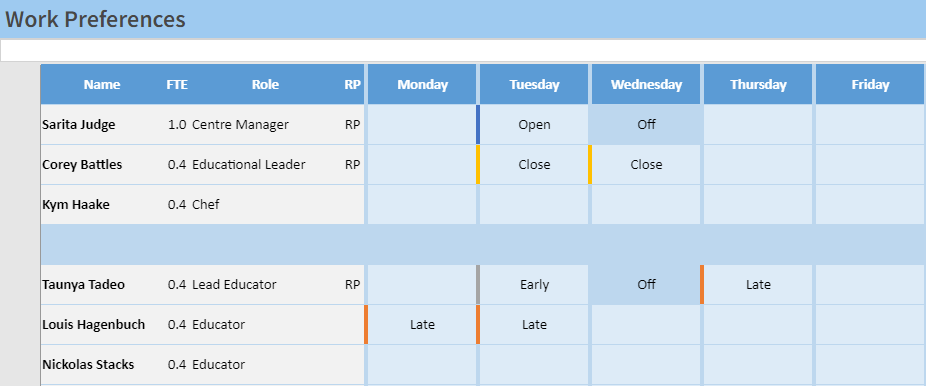
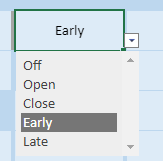
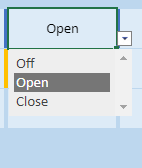
The system will always honour the Off, Open and Close settings. The system will use the Early and Late settings as ‘indicators of preference’. ie: If more people are set to ‘Early’ or ‘Late' than are required, the system may assign the employee a different shift.
Note: The use of this screen severely limits the options the Optimiser has to create efficient rosters. Its recommended that only ‘essential’ or 'must have’ preferences are specified on this screen to allow the optimiser to have as much flexibility as possible.
The system can be configured for what is considered an ‘early’ shift and a ‘late’ shift on the Configuration - Defaults view.

The system can be configured to allow all the options, or to allow just Off, Open and Close. By default all values are available. Contact Daitum via support@daitum.com if you want to prevent usage of the ‘Early / Late’ concept.
Starting Day for Roster
The system now supports any day as the start day for a roster.

Any day can be used as the starting day. The desired start day is specified on the Configuration- Defaults view.

If a day not matching this is selected the system will highlight that the entered day is incorrect.

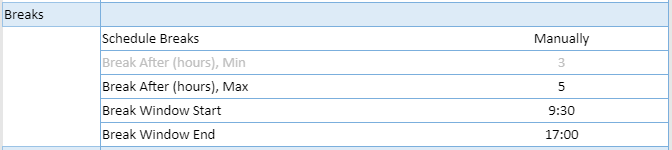
Break Window
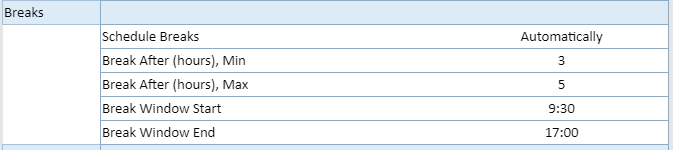
The Break Window concept has been extended to when breaks are automatically scheduled. The system can be configured to only allow breaks to happen within a specific window throughout the day. The settings on the configuration - Defaults screen are as follows:
Bug fixes:
-
None